
Panda Gamepad Pro
Panda Gaming StudioTools
4.02.07K Reviews
- Version
- 9.2
- Installs
- 500.00K
- Age Rating
- Everyone
Screenshots
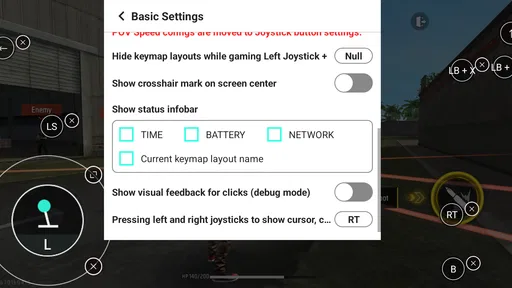
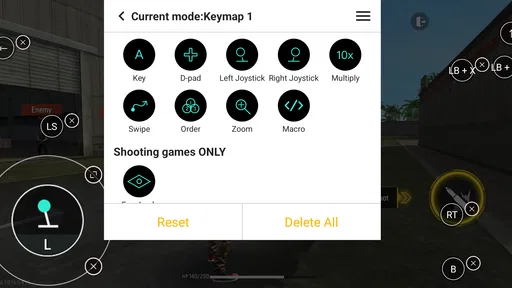
Our Review of Panda Gamepad Pro
 Analysis by Appyee
If you're a gamer who loves the thrill of mobile gaming but finds touchscreen controls a tad too limiting, then you might want to check out Panda Gamepad Pro. This app promises to revolutionize the way you play on your Android device by enabling you to hook up a gamepad for a more console-like experience. I've taken it for a spin, and here's what I found out.
The first-week appeal: comfort and control
The early attraction is easy to understand: a controller can make games with crowded on-screen buttons feel less cramped, and familiar physical controls may be easier to use during longer sessions. The biggest difference is not that every game suddenly becomes better, but that games suited to a gamepad can feel more comfortable and deliberate. I would start with one title you already play often, rather than trying to configure everything at once.
A practical first test is a short session in a game where aiming, movement, or repeated inputs feel awkward on glass. If the controller layout feels natural there, the setup has a clear purpose. If you mainly play games designed around taps and swipes, the benefit may be much smaller; a gamepad is not automatically an upgrade for every mobile game.
Setting Up Panda Gamepad Pro
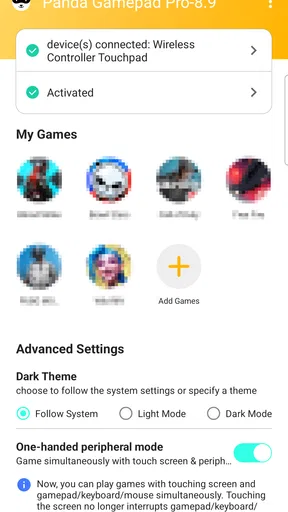
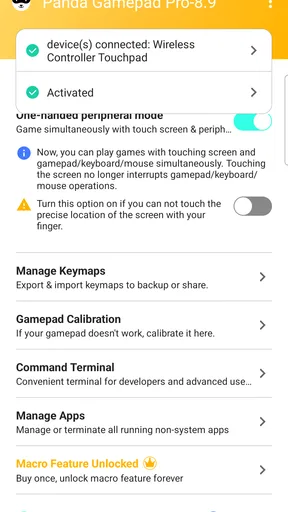
First things first, getting Panda Gamepad Pro set up is fairly straightforward, but it does require a bit of patience. You’ll need to enable a few settings and permissions, and if you’re not super tech-savvy, it might seem a bit daunting. But don't worry, the app provides a step-by-step guide to walk you through the process. Plus, there are plenty of online tutorials to help you out if you get stuck. Once you're set up, it’s smooth sailing.
That initial effort matters when deciding whether the app will become part of your routine. I would follow the guide carefully, then test the result in the actual game rather than assuming a successful setup means every control is placed well. Treat the first session as calibration: check that important actions are easy to reach, and adjust only what feels wrong. Making too many changes at once can leave you unsure which adjustment helped.
The app supports almost all popular Bluetooth controllers, so whether you’re rocking an Xbox controller or a PS4 one, you're covered. The connection is usually swift, and the app does a solid job of recognizing your controller without much fuss.
Gameplay Experience
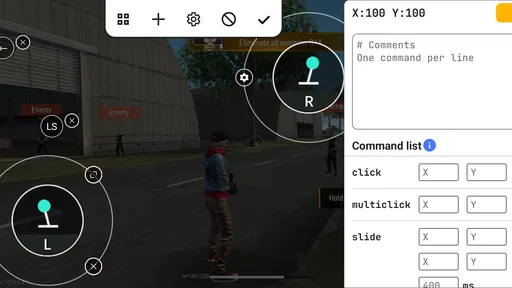
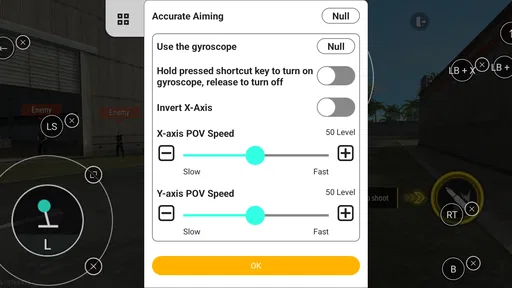
Now, let’s get into the nitty-gritty—how does it actually perform when you’re in the heat of battle? Honestly, it’s a game changer. The ability to map your controls precisely how you like them allows for a personalized gaming experience that you just can’t get with touchscreen controls. Whether you’re diving into a fast-paced shooter or exploring an open-world adventure, the precision and responsiveness of a gamepad make a noticeable difference.
One of the coolest features is the app's ability to save different configurations for different games. So, if you’re switching from PUBG to Fortnite, you don’t have to spend ages remapping your controls. Just select your saved configuration, and you’re good to go.
Making saved layouts earn their keep
Saved configurations are most useful when you revisit the same games regularly. I would make a separate layout for each title that genuinely benefits from a controller, then leave it alone until a real problem appears. That keeps a collection of profiles useful instead of turning it into a set of half-finished experiments. A saved setup also makes it easier to return after a break without rebuilding your controls from memory.
For an everyday example, imagine a commute or a quiet evening when you have time for a few rounds. You can connect the controller, select the layout you already know, and spend the session playing rather than arranging buttons. The trade-off is that this routine depends on having the controller with you and enough time to connect it; for a quick two-minute game, touch controls may be simpler.
Compatibility and Performance
While the app is designed to work with a wide range of games, there are some limitations. Some games might not support external controllers due to their own restrictions. However, for the most part, I found it works seamlessly with the majority of popular titles. The developers seem committed to updating the app regularly, ensuring it keeps up with new game releases and updates.
That makes checking a favorite game before paying especially sensible. Compatibility is a property of the particular game as well as the controller setup, so I would not buy the app on the assumption that every title will work the same way. If a game blocks external-control tools or does not suit mapped inputs, a conventional controller support option built into the game, when available, is the simpler route.
Performance-wise, when everything’s set up, the app runs smoothly without any noticeable lag. It’s crucial, though, to ensure your device’s Bluetooth connection is stable, as any hiccups there could affect your gaming experience.
When another approach makes more sense
Compared with relying on touchscreen controls, Panda Gamepad Pro is aimed at people who want physical input and are willing to configure it. Compared with a game that already handles a controller directly, a mapping app adds a setup step and may require more care when a game changes. If you only play casually, use touch-first games, or dislike adjusting controls, the built-in touch layout is likely less hassle.
For someone who already owns a compatible controller and returns to a few suitable games, the balance can be different. The app is a Tools app from Panda Gaming Studio, and its appeal is practical rather than decorative: it gives controller-focused players a way to shape their inputs around their habits. The key question is whether you will use those layouts often enough to justify the initial setup and the paid entry.
Month-to-month value and maintenance
Long-term value comes down to repetition. If a controller becomes your normal way to play a handful of games, saved configurations can keep the app useful beyond the novelty of the first week. If you keep changing games, switch devices, or rarely pick up the controller, the benefit may fade. I would judge it after several ordinary sessions, not just one impressive test.
Maintenance is modest but real: keep the controller charged, remember which layout belongs to which game, and revisit a profile if an update changes how a title behaves. A useful habit is to adjust one control at a time and test it in a safe or low-pressure part of the game. That avoids spending a whole session chasing a perfect layout and makes it easier to undo a change that did not help.
There can also be friction in simply getting ready to play. A controller takes space, Bluetooth needs to connect reliably, and a mapped layout is only helpful if the game remains compatible. Those small chores are easy to overlook during setup. If they repeatedly interrupt short sessions, that is a sign the app may not fit your routine, even if its control options are appealing.
Price, support, and who should skip it
The app costs $4.99, with in-app purchases priced at $1.99 per item. I would treat that as a reason to check the games you actually play and the controller you own before committing, rather than buying in the hope that every mobile title will become controller-friendly. It has an average rating of 4.0 from around 34,000 ratings, and more than 500,000 installs; those figures suggest a sizable audience, but your own games and setup matter more than popularity.
Its age rating is Everyone, and version 9.2 requires Android 6.0 or later. It is not the right fit for iPhone players, people without a controller, or anyone who expects plug-and-play support across every game. It is also a poor match if you prefer not to spend time troubleshooting a connection or refining a layout. A game with dependable native controller support, or touch controls that already feel comfortable, may be a better choice.
Final Thoughts
In the end, Panda Gamepad Pro offers a fantastic solution for gamers looking to enhance their mobile gaming experience. While the setup might require a bit of effort, the payoff is definitely worth it if you're serious about gaming on your phone. The ability to use a gamepad not only adds comfort but also a level of precision that touchscreen controls simply can’t match.
If you’re ready to take your mobile gaming to the next level, I’d definitely recommend giving this app a try. Just make sure to check if your favorite games are compatible and prepare to enjoy a more immersive gaming experience.
My lasting recommendation is narrower: choose it when you already have a controller, know which games you want to play with it, and expect to return to those games. The app has a 4.0 average from around 34,000 ratings, but that cannot tell you whether your particular game and routine will make the setup worthwhile. When the controller becomes part of your regular play, the saved layouts can earn their place; when it stays in a drawer, the initial appeal will not be enough.
Verdict
Strengths of Panda Gamepad Pro
- Seamless gamepad integration.
- Customizable control mapping.
- Supports most Android games.
- User-friendly interface.
- Regular updates and support.
Limitations of Panda Gamepad Pro
- Requires root or PC activation.
- Limited iOS support.
- Not all games compatible.
- No trial version available.
- Can be complex for beginners.
Other Releases by Panda Gaming Studio
View All
Panda Mouse Pro
Tools4.3
Similar Picks in This Category
View All
Google LLC4.0

Gboard - the Google Keyboard
Google LLC4.5

Google Play services
Google LLC4.3

Google Play Store
Google LLC4.9

Files by Google
Google LLC4.5

SHAREit: Transfer, Share Files
Smart Media4U Technology Pte.Ltd.4.3
Frequently Asked Questions
What is Panda Gamepad Pro and how does it work?
Panda Gamepad Pro is a powerful tool that allows users to map their gamepad buttons to Android games that do not natively support external controllers. This app provides an intuitive interface where you can customize your gamepad settings, enhancing your gaming experience by providing more precise control and eliminating the need for on-screen buttons.
Is my device compatible with Panda Gamepad Pro?
Panda Gamepad Pro is compatible with most Android devices that support Bluetooth or wired gamepads. However, it's important to check the app's requirements on the Google Play Store to ensure your device meets the necessary criteria. The app may require Android 4.4 and up, and certain devices may require additional setup steps to function properly.
Does Panda Gamepad Pro require rooting my device?
No, Panda Gamepad Pro does not require rooting your device. However, it does require a PC for initial activation. This setup process is necessary to enable the mapping features but does not compromise your device's security or warranty, making it a safe option for users who prefer not to root their devices.
Are there any in-app purchases or subscriptions in Panda Gamepad Pro?
Panda Gamepad Pro is a one-time purchase app, meaning there are no in-app purchases or recurring subscription fees. Once you buy the app, you gain access to all its features without any additional costs. This makes it a cost-effective solution for gamers looking to enhance their mobile gaming experience.
Can I use Panda Gamepad Pro with all games on my device?
While Panda Gamepad Pro supports a wide range of games, not every game may be compatible due to varying developer settings and restrictions. It's recommended to test the app with your favorite games first. The app's community and updates often address compatibility issues, so staying updated can help maximize its utility.
